Online ordering
Easily build & market a school store or cafe web app.
Online orders captured & managed in your School POS system.
Store online ordering
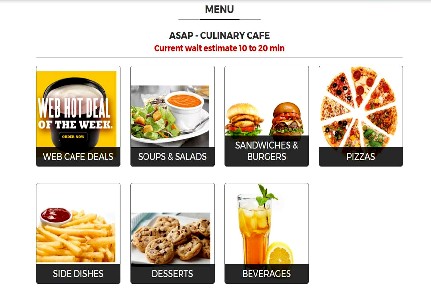
Cafe online ordering

Test-drive the web store or cafe demo
What it includes (.pdf)
What it includes (.png)
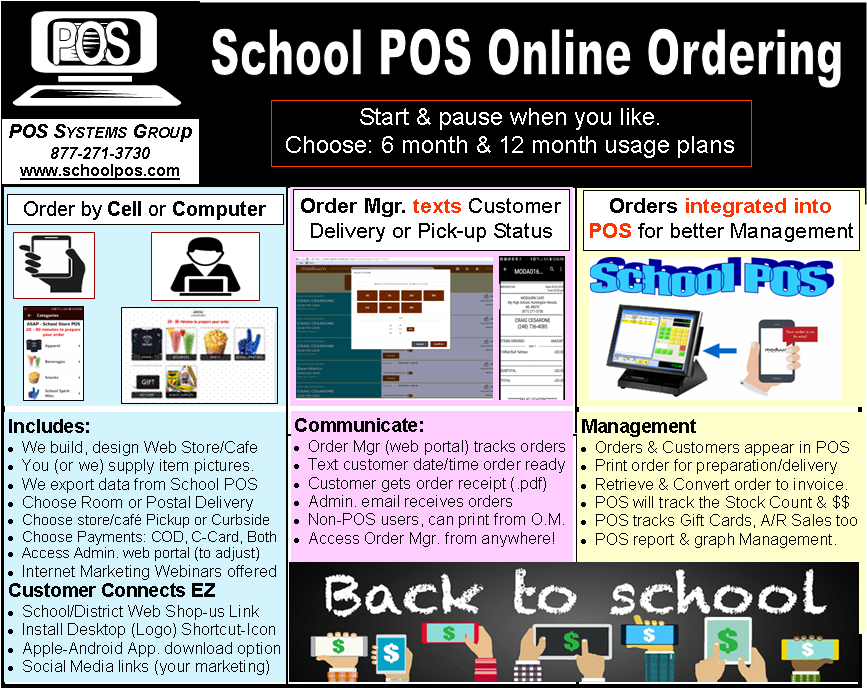
Information document to print
Visit live school web stores & cafes
See the new version 2, coming soon
Text customers the date and time their order will be ready (delivery or pickup)
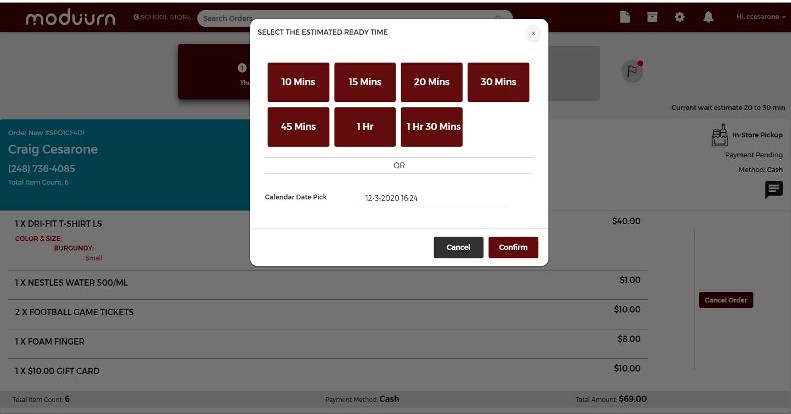
See the easy steps & responsibilities below

Step #1
App & web store or cafe logo
You supply a school store or cafe image. You also get a landing page to communicate your hours, rules & curriculum mission statement.



Step #2
School POS data export
We export from your School POS to an Excel document for your final review. You decide what items you wish to sell online.
You take pictures. We do all the web store or cafe setup work. Together, we review the draft and learn how to edit & add new images and prices through the web admin portal.
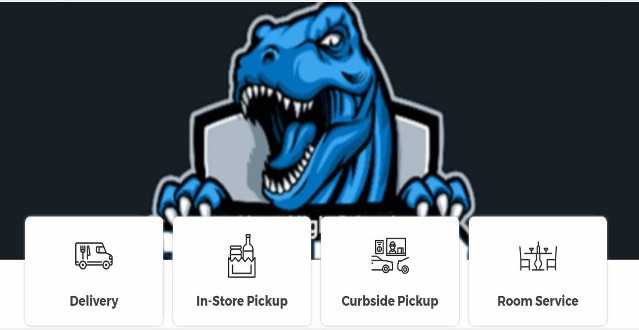
Step #3
4 order options
You decide: postal delivery? Classroom delivery? Curbside or store pickup?
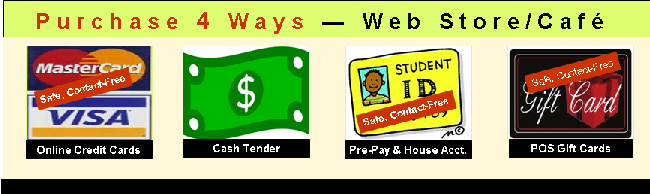
Step #4
4 payment options
You decide: cash on delivery at the store or cafe? Gift card? Student ID pay? Staff house account (accounts receivable)? Credit card?
Online credit card payments are not mandatory.

Step #5
4 connect options
Customers connect to the store or cafe from the school & district website, social media, a desktop or phone shortcut, or a downloaded app (Google & Apple fees may apply)
(URL registration included)
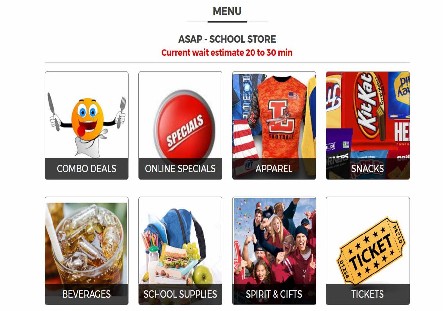
Step #6a
Shop by computer
Items & images resize to screen size (department listing example)
(Setup included)
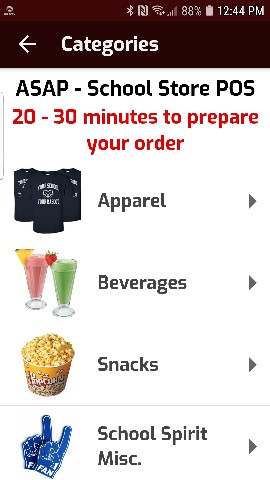
Step #6b
Shop by cell phone
Items & images resize to screen size (department listing example)
(Setup included)
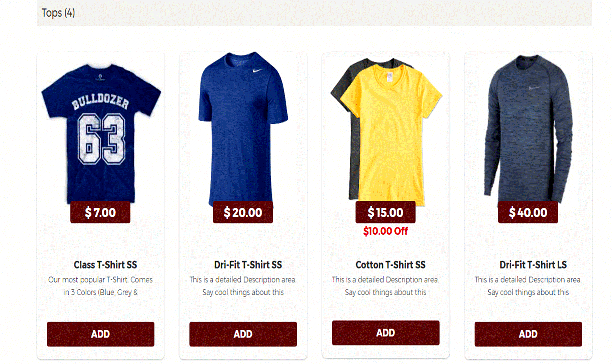
Step #7a
Choose a store item
Retail items & images resize to screen size (item example)
(Setup included)
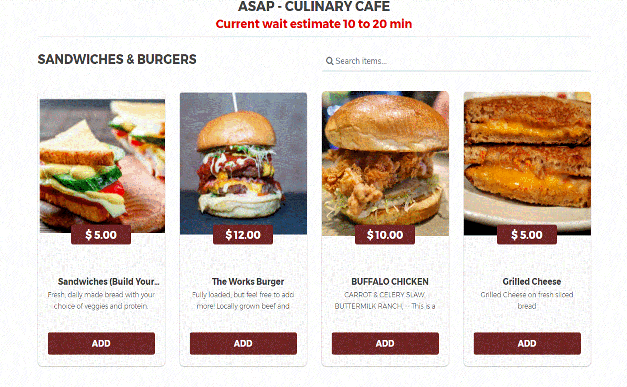
Step #7b
Choose a cafe menu item
Menu items & images resize to screen size (item example)
(Setup included)
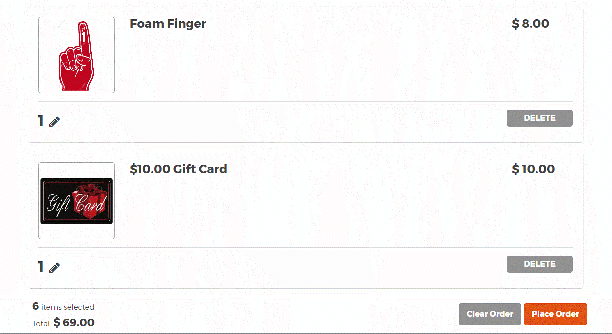
Step #8
Checkout
Review & place your order
See item quantities & images and the order total. Change or delete quantities.
(Setup included)
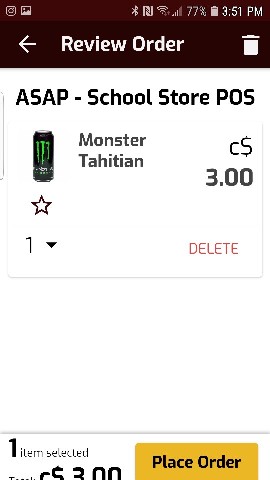
Step #8
Checkout
Review & place your order
See item quantities & images and the order total. Change or delete quantities.
(Setup included)
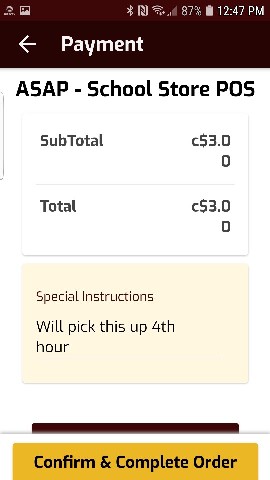
Step #9a
Confirm order
Add special notes, and choose to pay online or cash on delivery at the store or cafe
Customer email and address registration is optional
It remembers the customer's phone number on their second order!
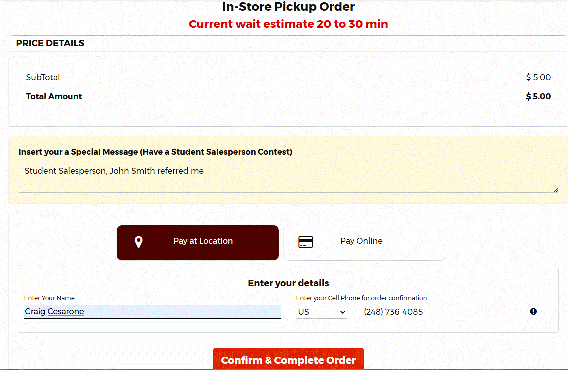
Step #9a
Confirm order
Add special notes, and choose to pay online or cash on delivery at the store or cafe
(email and address registration is optional)
It remembers the customer's phone number on their second order!
r
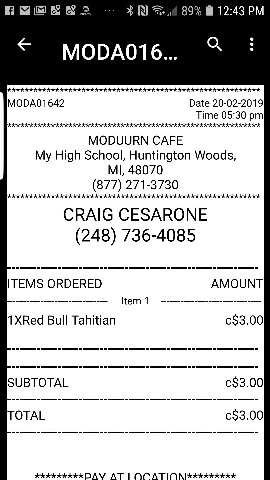
Step #11
Customer order receipt
The customer receives an order receipt (PDF) on their phone or computer
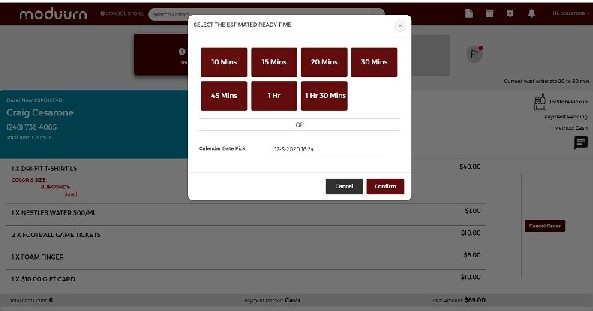
Step #12a
Text the customer in the order manager
See all orders on a secure web page. Text the customer: "Ready for pickup in 5 minutes" or "Will deliver in 3 days."
(This feature is optional)
Step #12b
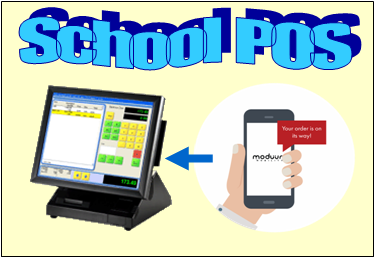
Receive orders in School POS
Orders land in your School POS for better inventory & money management!
Retrieve online orders & convert them to invoices.
The latest POS software (version 6) & the Moduurn module are required